How to Update and Upgrade Windows 10 to Windows 11 | how to upgrade your system to windows 11
Dear reader, today in this article we will talk about a very interesting topic that is important — in fact, the most important — for many people.
That topic is the upgrade to Windows 11, the latest operating system from the well-known, pioneering, and most famous company in its field: Microsoft.
By the end of this article you will be able to upgrade your current system yourself, without needing to go to service centers or technicians.
All we need for this is a flash drive of no less than 8 GB,
as well as another device — whether a laptop or a desktop — so that we can burn the OS onto the flash drive
and then install it on the target system.
Now, my friend, let us begin — in the name of God —
simply, smoothly, and in plain language.
Now for the steps **
1 — Insert the flash drive into the computer and note the drive letter assigned to it, for example (D, E, F, G), and so on. This is important because the tool will format the flash drive, and to protect your data you must be careful not to format the wrong drive — so pay close attention to the drive letter.
In our example it is Drive D.

2 — The second step is to click here to open the link and download the file simply by following these steps: skip the robot verification test as shown in the image, then click the word Download.
3 — After downloading the application or tool we need, click on it to open it and it will appear as shown in the following image:
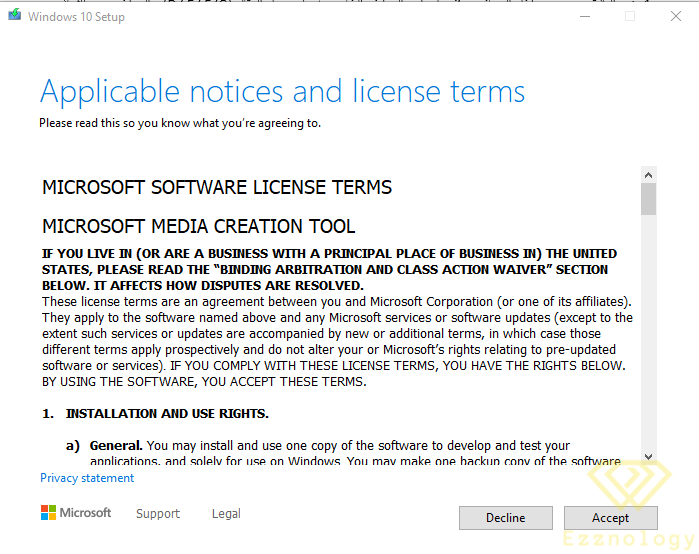
4 — All you need to do now is accept the terms and then click Next, then confirm the drive letter or name that the tool will format to build the new system files. You just need to confirm the data and give your approval, and the tool will download and begin burning the new operating system onto the flash drive. After just a few steps, we will say congratulations on your new system.
5 — In this choice you will find it gives you the option of either upgrading the current system or creating installation media for another machine or device.
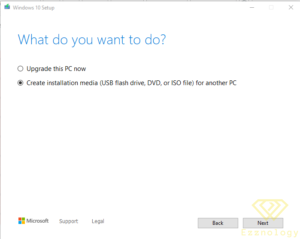
upgrade this pc now
or
create installation media (usb flash drive , DVD , Or iso file ) for another pc
If you want to upgrade the current system on the device you are currently working on without any direct intervention, you will choose the first option.
But in our case, since we want to create a bootable flash drive for another device, we will choose the second option.
Now click Next.
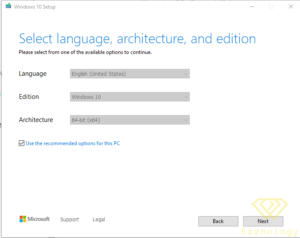
6 — Now it confirms the language and default settings for the program and system. If you want to change the language or keep it as the default based on your current device language, it also confirms the Windows version and edition, then click Next.
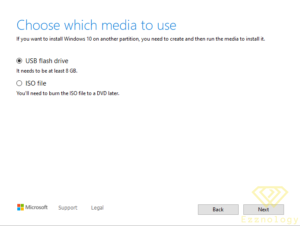
7 — In this step it gives you the option of either an ISO file — meaning it will extract the copy as compressed files in ISO format to be burned onto the flash drive later — or it will do the work right now, formatting the flash drive and preparing it. It also reminds you that in this case the flash drive must be at least 8 GB, as I mentioned a moment ago.
In our case we will choose the first option: format the flash drive now and copy the system files onto it.
As you can see in these images, it now confirms the flash drive details, its name, and its drive letter.
Now we will click Next to continue what we started, as shown in the image.
Finally
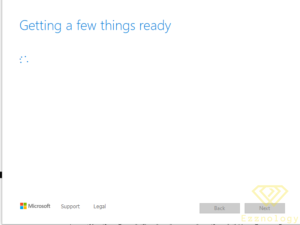
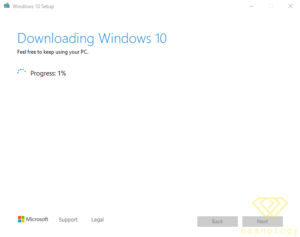
The tool will take some time to complete the required tasks of re-formatting the drive and then downloading the system files, after which the flash drive will be ready for use. The amount of time needed to complete the task depends on your Internet speed for downloading the system files onto the flash drive.
Now that the task has been completed successfully, all you need to do is restart the device and wait for it to boot from the newly prepared flash drive.
After a short while you will see the operating system logo appear on the device, whether Windows 10 or Windows 11.
Now it is time to download the tool we have been working with from the beginning of this guide, which is:
First, to download the Windows 11 installation tool, click here:
Windows11InstallationAssistant

Or
Second, to download the Windows 10 tool on the latest release, click here:
MediaCreationTool20H2
Or
With this we have completed the process of upgrading the current system on your device or switching to Windows 11 — the operating system that needs no introduction. Congratulations on your new device and system, and we ask for your prayers.
** Important Note:
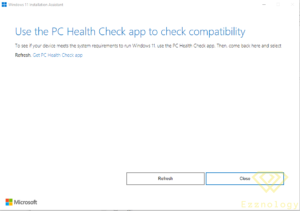
Some devices do not support the upgrade to Windows 11 because it requires specific hardware resources. If this message appears to you, make sure that your device’s hardware meets the requirements of Windows 11.
And with that, my friend, we have successfully completed the mission 
With greetings from the #Ezznology team
Find what you need at #our store
To subscribe to our newsletter on Google News click here 

or scan the code

You might also like:
What is my IP address? And what is its importance?
How Does Cloud Security Work? | Cloud Computing Security
What Is Cloud Migration? | Cloud Migration Strategy | Cloud Lifting and Shifting