How to Get a YouTube API Key [Tutorials + Examples]
What is the YouTube API?
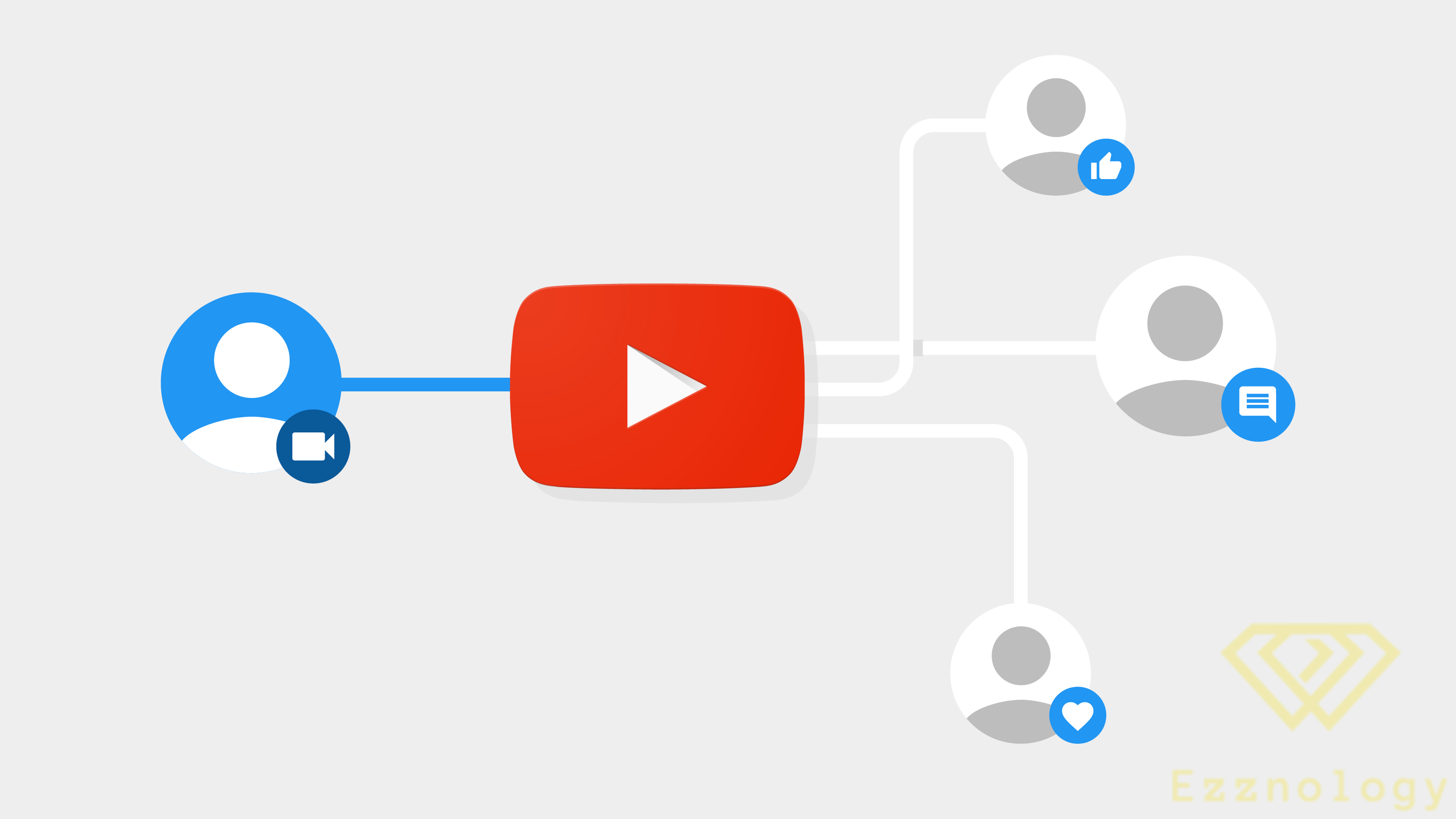
The YouTube API is an application programming interface that allows you to embed videos, organize playlists, and provide other YouTube functionality on your website. It helps businesses offer advanced video-sharing features on their website or application without having to write code from scratch.
Like other (APIs or application programming interfaces), the YouTube API makes a programmer's job easier by skipping the effort of writing every line of code each time users need to access data. Instead, programmers can use predefined functions and protocols to curate YouTube videos on a website.
In addition, the YouTube API has a wide range of features and functionality that make it accessible to developers and valuable for businesses. It allows you to retrieve data at scale without needing to access individual videos and channels.
With that in mind, what type of data can you retrieve using the YouTube API? Let's take a look.
YouTube API Data
The YouTube API allows you to access YouTube data in a more comprehensive and scalable way than standalone YouTube embed codes. You can retrieve entire playlists, user uploads, and even search results using the YouTube API. You can also add YouTube functionality to your website so that users can upload videos and manage channel subscriptions directly from your website or application.
Let's take a look at some of the most common API functions. This is not a comprehensive list. We recommend checking out the official Google documentation.
Benefits of Using the YouTube API
Many marketers and business owners miss out on the benefits of integrating YouTube into their digital marketing strategy. It usually comes down to how much time it takes to create high-quality video content.
In a typical YouTube marketing effort, you would consistently publish video content every week hoping to earn likes and subscribers – hoping some of them convert into customers. Fortunately, this is no longer the only way to use YouTube in your business. YouTube has created an API that allows you to integrate your website with the social platform.
Here are some of the top benefits of using the YouTube API:
- You can leverage existing content. With the YouTube API, you won't have to spend valuable time and resources creating content. Instead, you can leverage already-published content to increase user engagement on your site.
- YouTube is one of the best social media platforms. With more than two billion active users in more than 100 countries, YouTube is the top video streaming app. It is also the second-largest search engine, the second most popular social platform, and the second most visited website on the internet.
- Displaying YouTube content can increase your dwell time. Since the YouTube API can help you add YouTube content to your website, it will help users stay on the page longer while watching content you've curated specifically for them. This increase in dwell time signals to search engines that your content is valuable, boosting your rankings for targeted keywords.
- Using the API can help you convert more site visitors. Using the API is also beneficial in terms of conversion rate and from a revenue perspective. Potential customers who engage with your content and stay on your website are more likely to make a purchase.
Using the YouTube API is something many marketers don't think about, but YouTube doesn't allow just anyone to access this valuable tool or its data. To prevent potential abuse, YouTube gives each user a unique API key that allows them to link their website or application to the platform.
Each API key is assigned to an individual project. If you are using the API on two different websites, you must create two different API keys.
Now, let's move on to how to get a YouTube API key step by step.
How to Get a YouTube API Key
- Log in to Google Developers Console.
- Create a new project.
- In the new project dashboard, click Explore and Enable APIs.
- In the Library, navigate to YouTube Data API v3 under YouTube APIs.
- Enable the API.
- Create credentials.
- A screen will appear with your API key.
1. Log in to Google Developers Console.
You can log in to Google Developers Console using your Google account. If you don't have one yet, you will need to create one.
2. Create a new project.
Once logged in, you will automatically be taken to an empty dashboard. In the upper right corner, click Create Project.
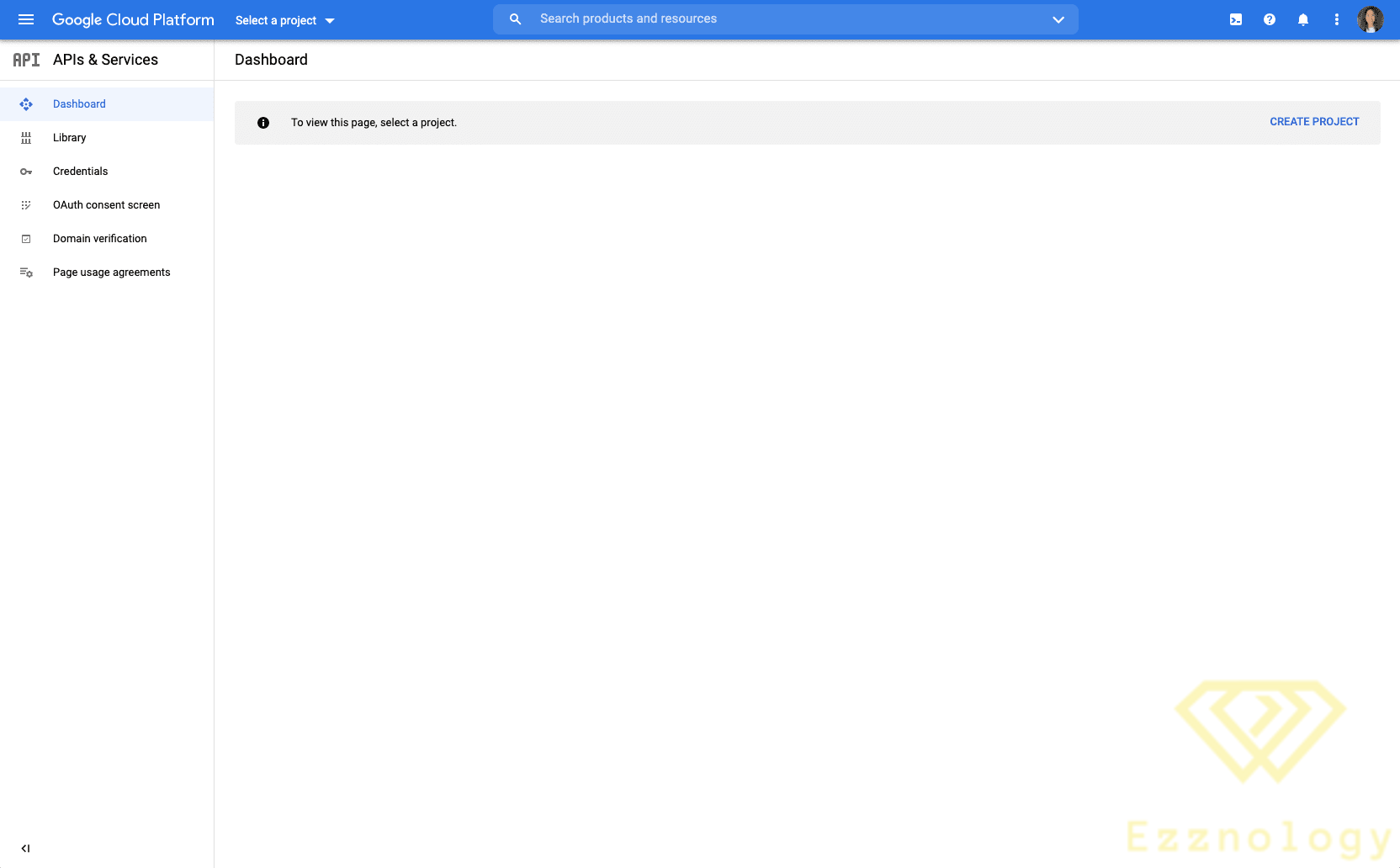
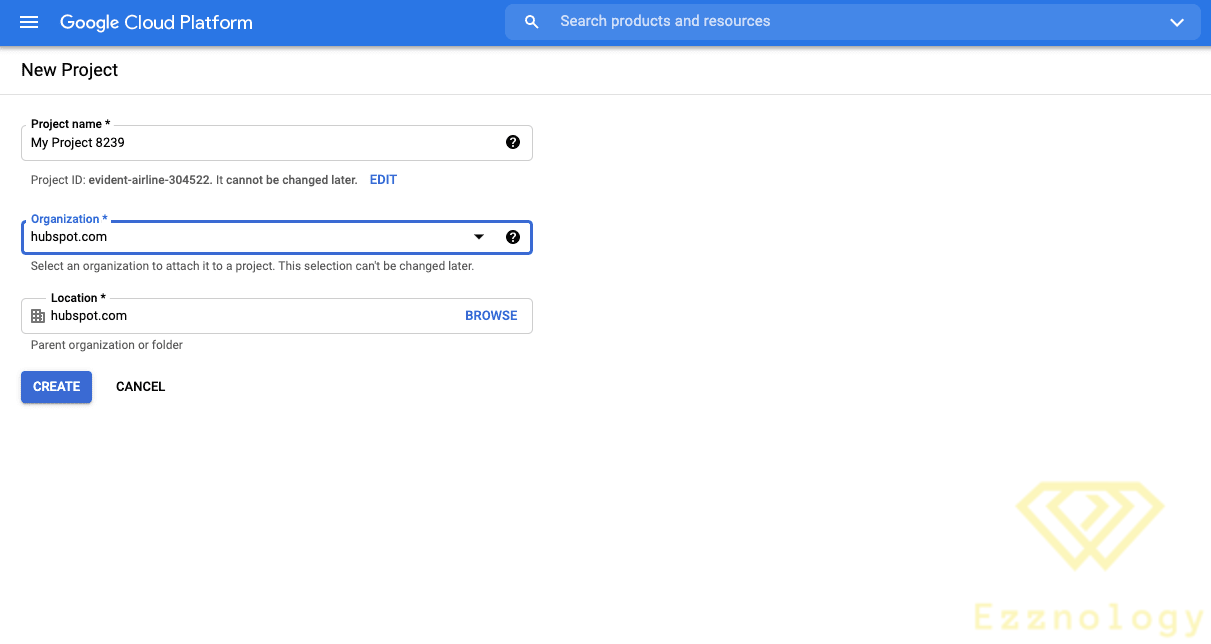
Once a project is created, everything you do from here on, including creating an API key, will apply to that specific project. If you have multiple projects running simultaneously, make sure you have the correct project selected by double-checking that the project is listed in the top navigation bar.
3. In the new project dashboard, click Explore and Enable APIs.
After creating a project, you will be taken to a brand-new dashboard with different cards: project information, resources, and so on.
Go to the Getting Started card and click Explore and Enable APIs.
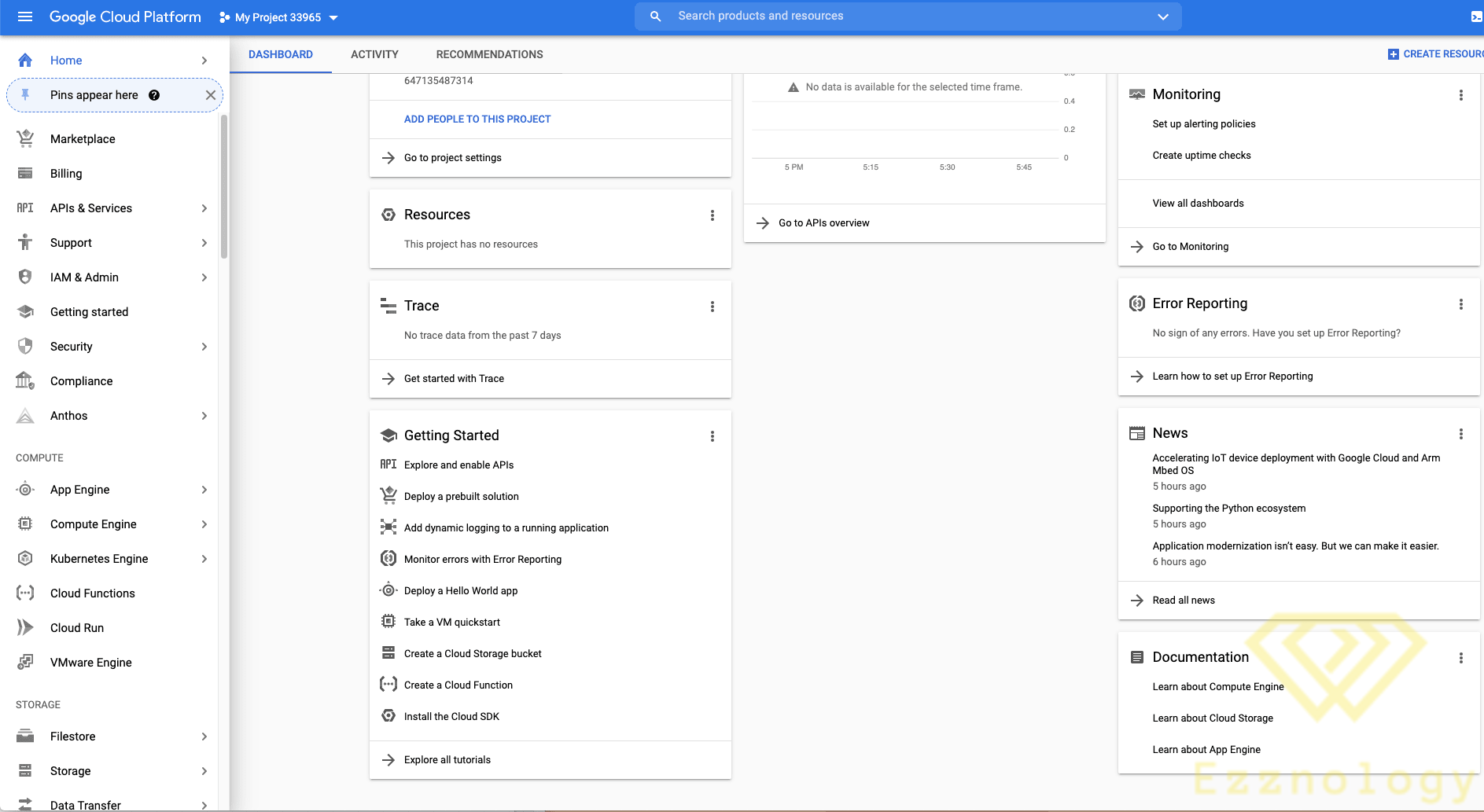
Alternatively, in the sidebar, navigate to APIs & Services > Library.
4. In the Library, navigate to YouTube Data API v3 under YouTube APIs.
Once you reach the Library, you will see a page divided into sections. Navigate to the section labeled YouTube APIs and select YouTube Data API v3.
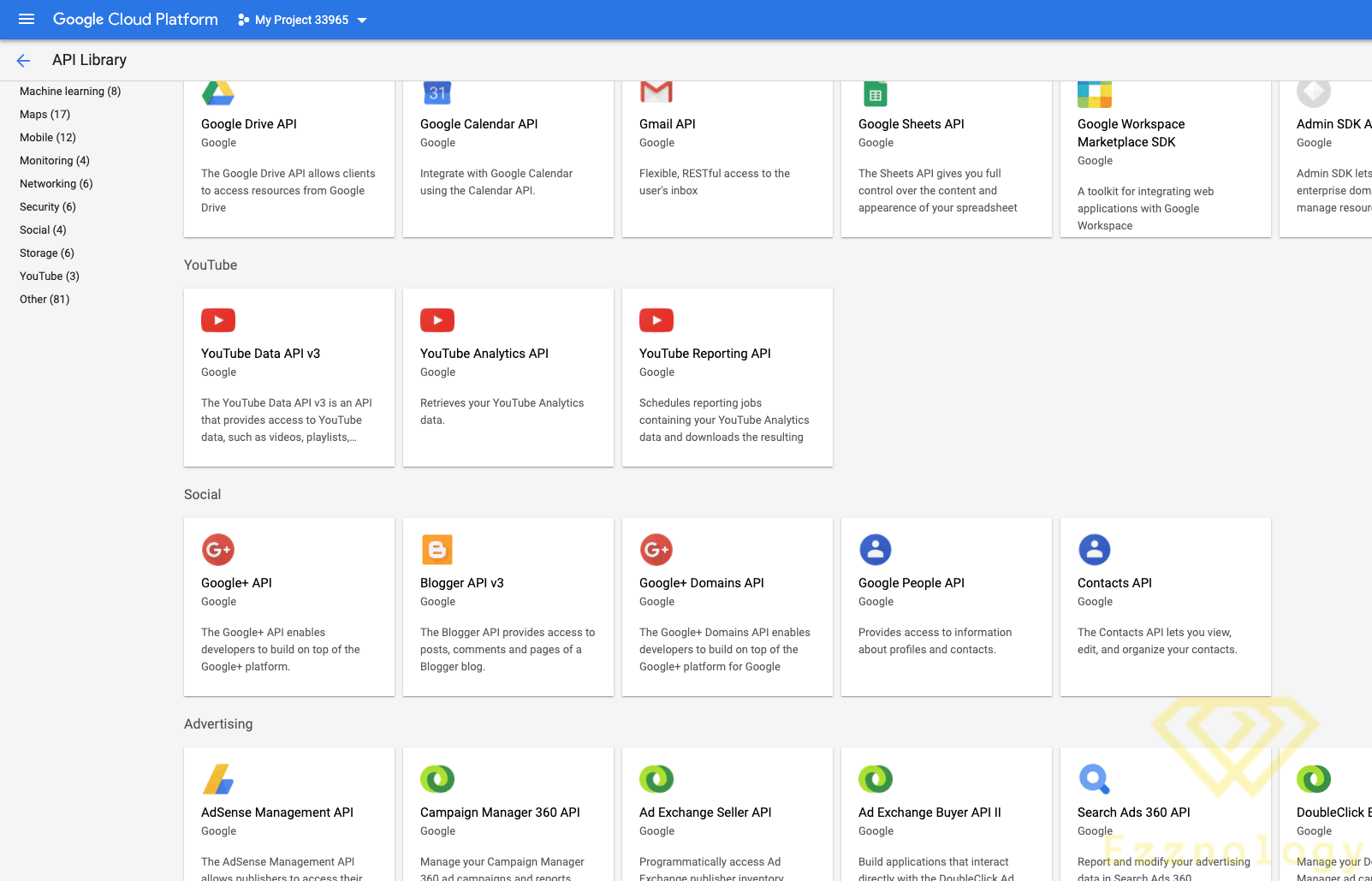
Alternatively, you can search for YouTube Data API in the search bar.
5. Enable the API.
After reaching the YouTube Data API page, click the blue button labeled Enable.
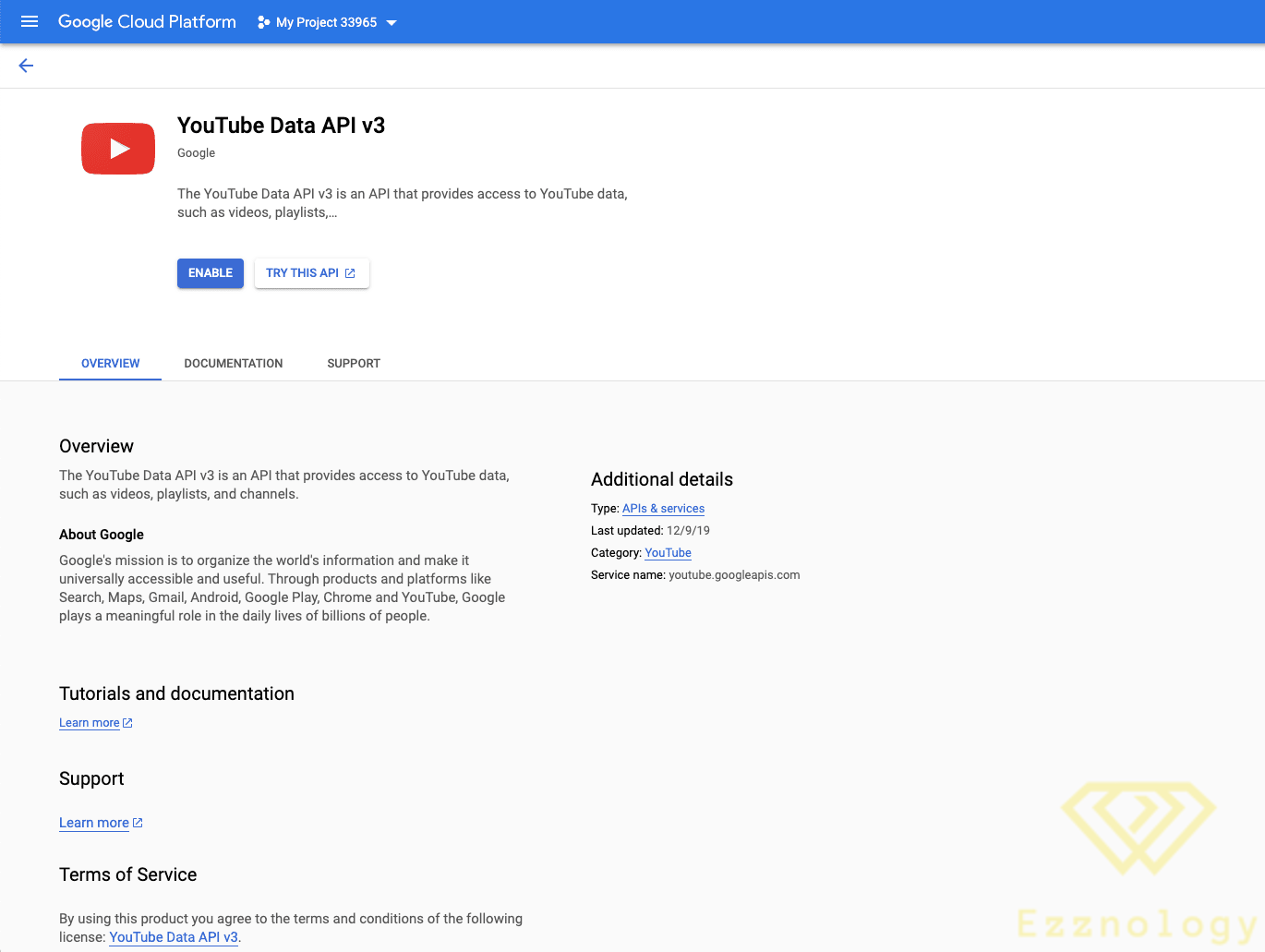
6. Create credentials.
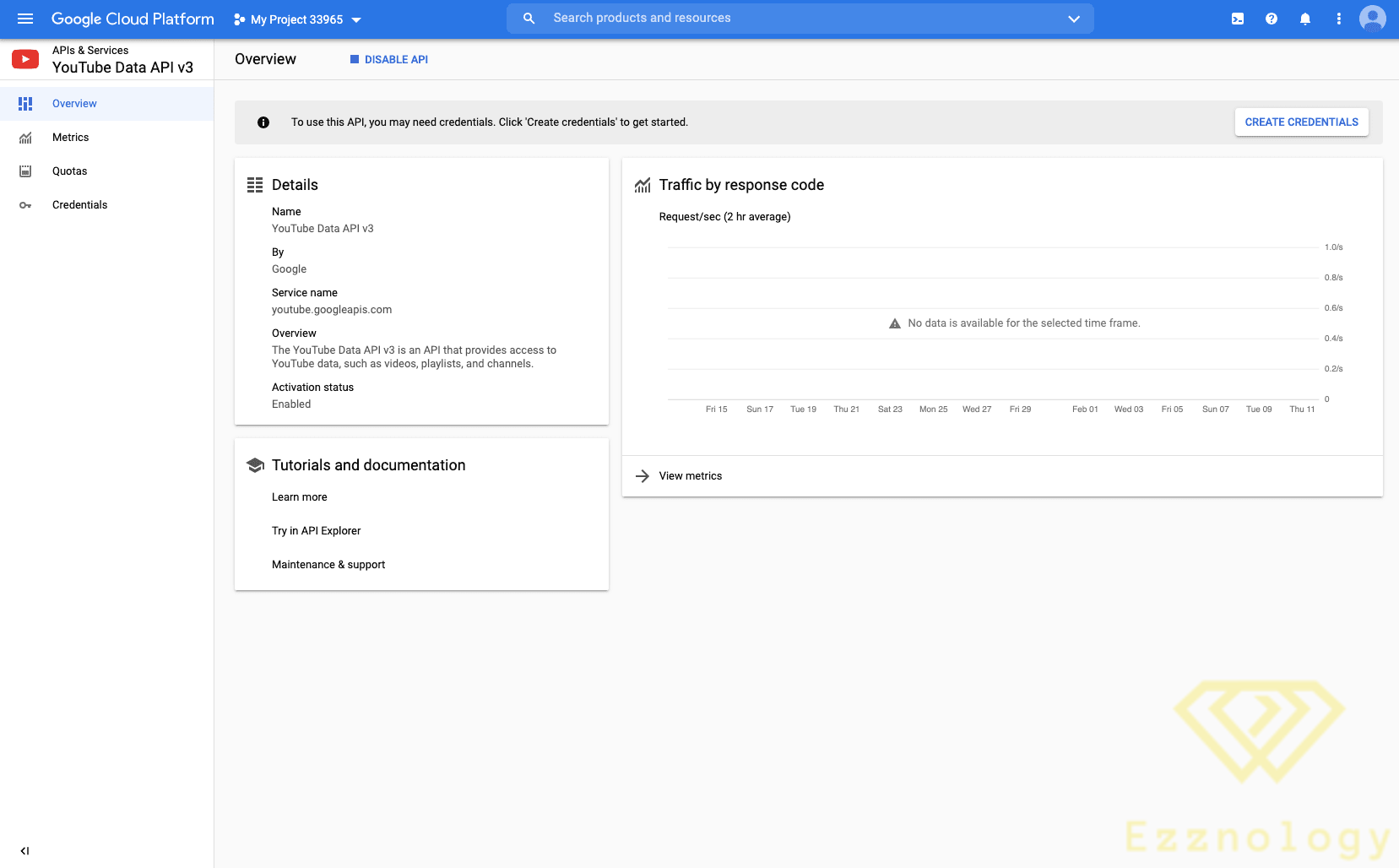
After clicking Enable, you will be taken to an overview page.
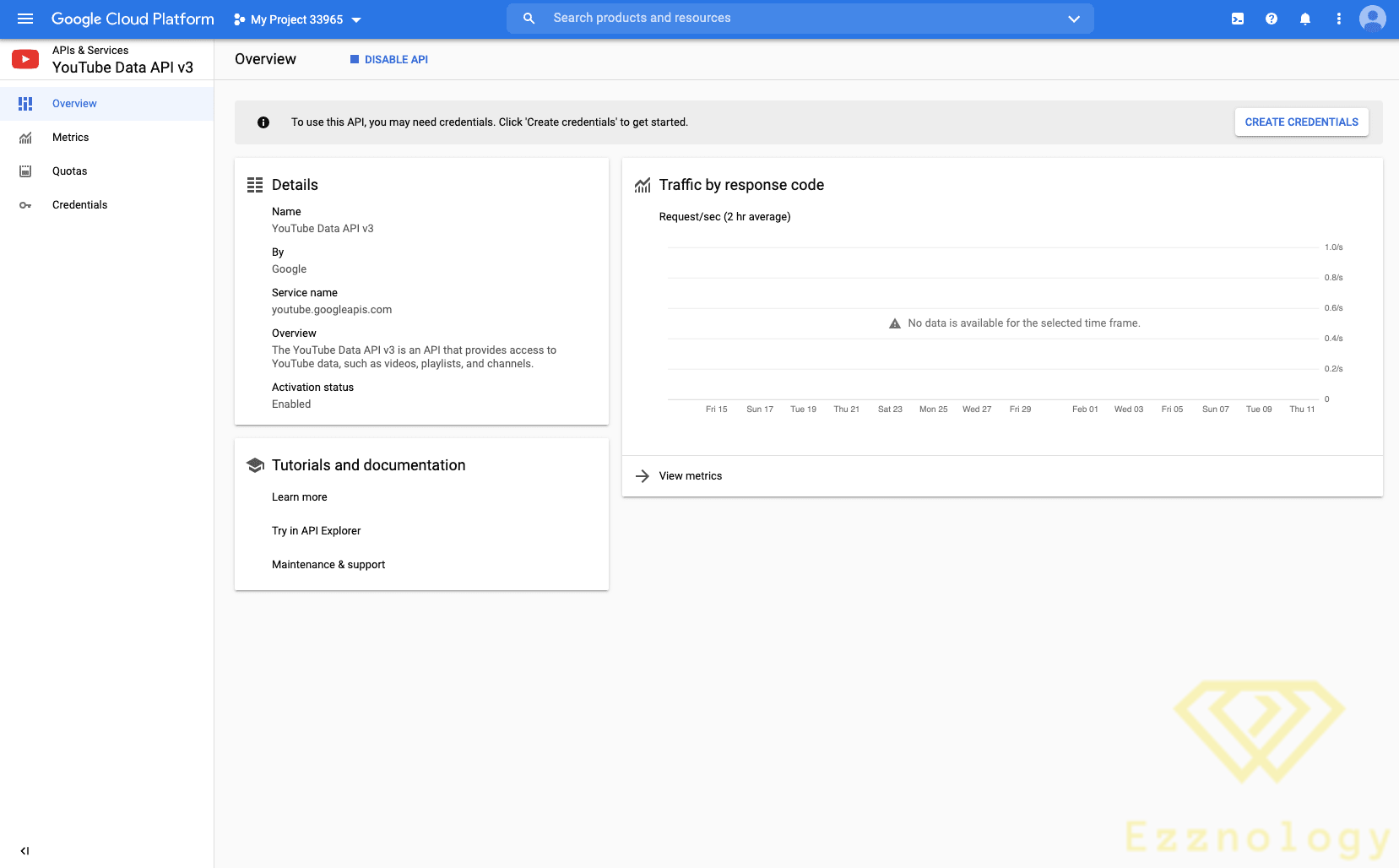
In the upper right corner, click Create Credentials.
In the credentials window, select YouTube Data API v3 for the first blank space, Web server (e.g., node.js, Tomcat) for the second, and check the Public Data box in the third prompt.
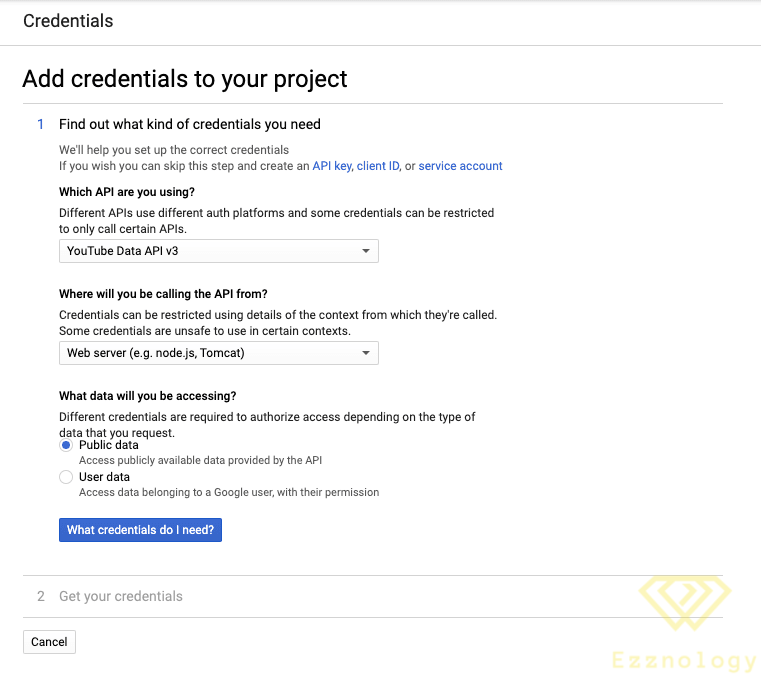
Directly below that, click the blue button labeled What credentials do I need?
After that, your API key will be automatically loaded.
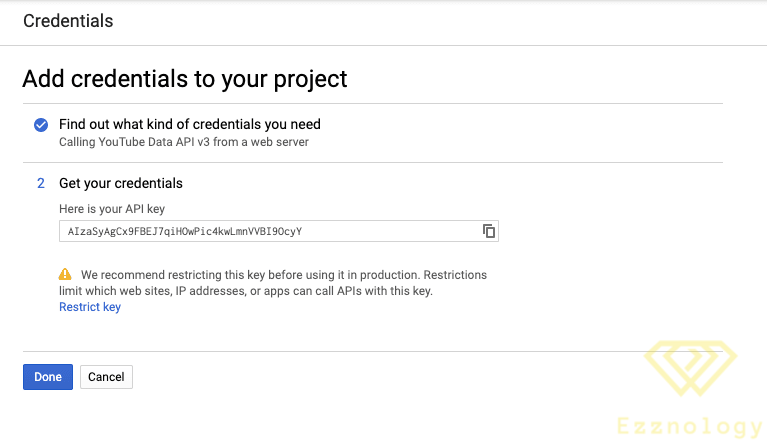
Click Done.
7. A screen will appear with your API key.
You're done! You have your API key. It is saved in your credentials for easy retrieval.
YouTube API Key Troubleshooting
Where is my YouTube API key?
Did you create an API key but don't know how to find it? We'll walk you through the process of finding it step by step.
-
- Step 1: Log in to Google Developers Console.
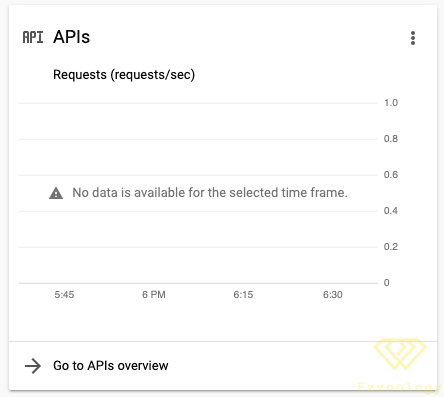
- Step 2: You will automatically be taken to the project dashboard, where you will see a series of cards. Under the APIs card, click Go to APIs Overview.
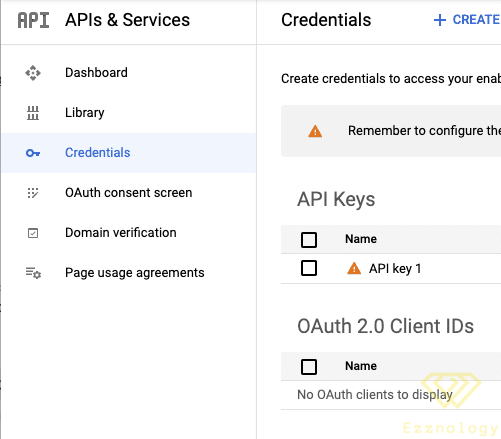
- Step 3: You will be taken to a dashboard with a sidebar. In this sidebar, click Credentials.
-
- Step 4: All done! You will find the YouTube API key you created.
My YouTube API key is not working
Glitches happen all the time, especially when it comes to APIs.
Your API key may not be working because you are using it for the wrong project. Make sure you are using the key for the project you created it for, especially if you have created multiple projects at the same time.
If it still doesn't work, consider creating a brand-new API key.
Once you have retrieved your YouTube API key, you can use it to call YouTube data. Another very useful use case is live streaming events for your business. This will require you to access the YouTube Live Streaming API.
How to Access the YouTube Live API
1. Follow steps 1 through 7 above to get your YouTube API key.
First, set up your project, website, or application, then obtain a YouTube API key. This key will allow you to access the YouTube Live Streaming API.
Don't forget to register your application with Google so that your API requests are successfully authenticated.
2. Get familiar with the resources associated with the YouTube Live API.
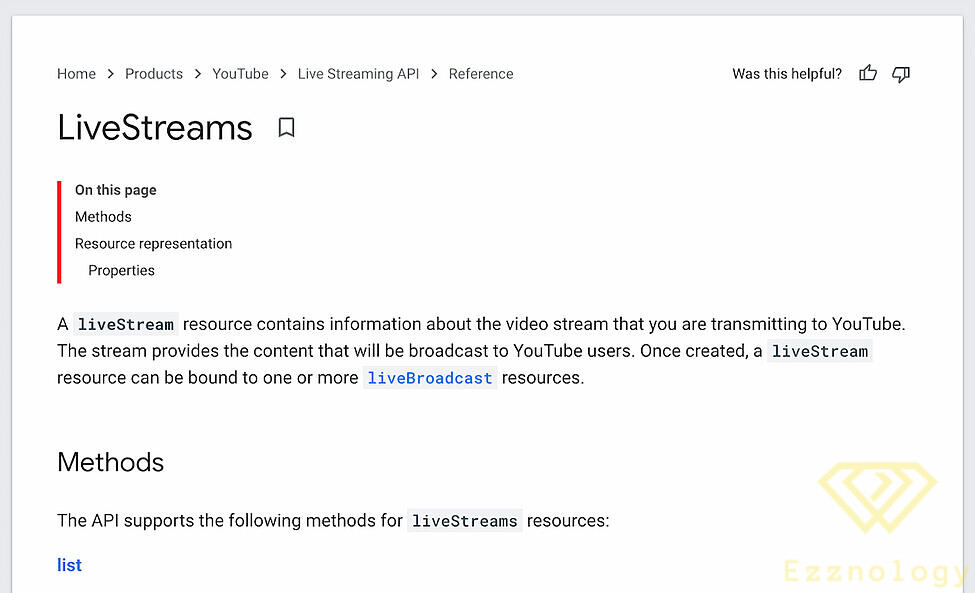
The YouTube Live Streaming API has a distinct set of resources for which you can make API calls. These include:
- LiveBroadcast refers to the metadata for your live YouTube video.
- LiveStream refers to the actual content that you will broadcast during the live event.
- LiveCuepoint refers to an ad break in your live video.
The YouTube Live API also shares some resources with the YouTube Data API, including:
- Video refers to a single YouTube video.
- videoAdvertisingOptions refers to the advertising settings for your broadcast.
- Asset refers to a piece of intellectual property (such as a scene from a film or show) that you do not own.
- Policy refers to any rules or policies that govern a live broadcast or YouTube video.
3. Learn what you can do with specific resources.
For each of these resources, you can complete a specific set of actions, called “methods.” The methods available to you vary depending on the resource you are trying to make an API call for.
For example, you can do the following with the LiveBroadcast resource:
- list: Allows you to retrieve a list of broadcasts that match your request parameters.
- insert: Allows you to create a live broadcast.
- update: Allows you to change the metadata or settings of a live broadcast.
- delete: Allows you to delete a broadcast.
And much more. It all depends on exactly what you are trying to do. If you feel lost and don't know how to use the YouTube Live Streaming API for your WordPress website, for example, you might consider using a plugin such as WP YouTube Live.
4. Try it out using the Google API Explorer tool.
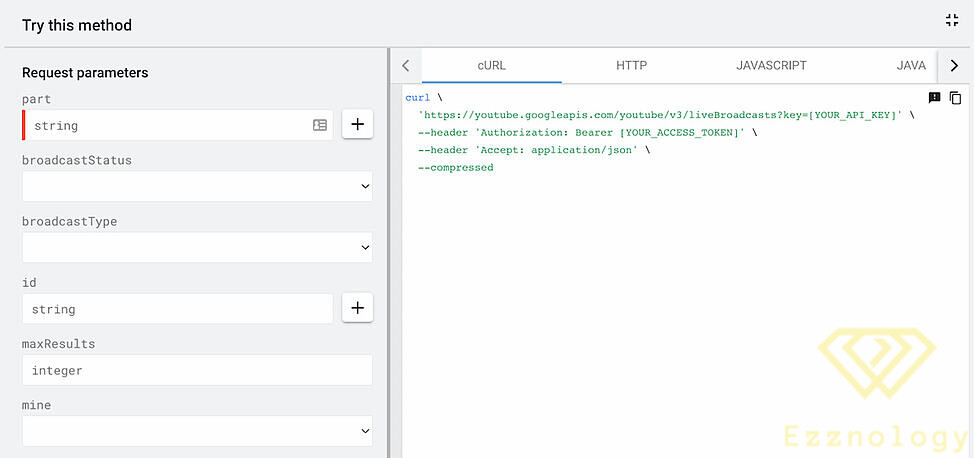
Before you touch a single line of code in your actual application or website, try the Live Streaming API using Google's built-in API Explorer tool. In it, you can specify parameters such as broadcast status, broadcast type, page token, and more (though the fields will vary depending on the resource and method you are testing). This allows you to craft code in a sandbox environment without interfering with the code you have already written for your website or application.
If you are looking for more general YouTube Data API examples, you're in luck. Below, we share some sample code for common things you may want to do with the API.
YouTube API Examples
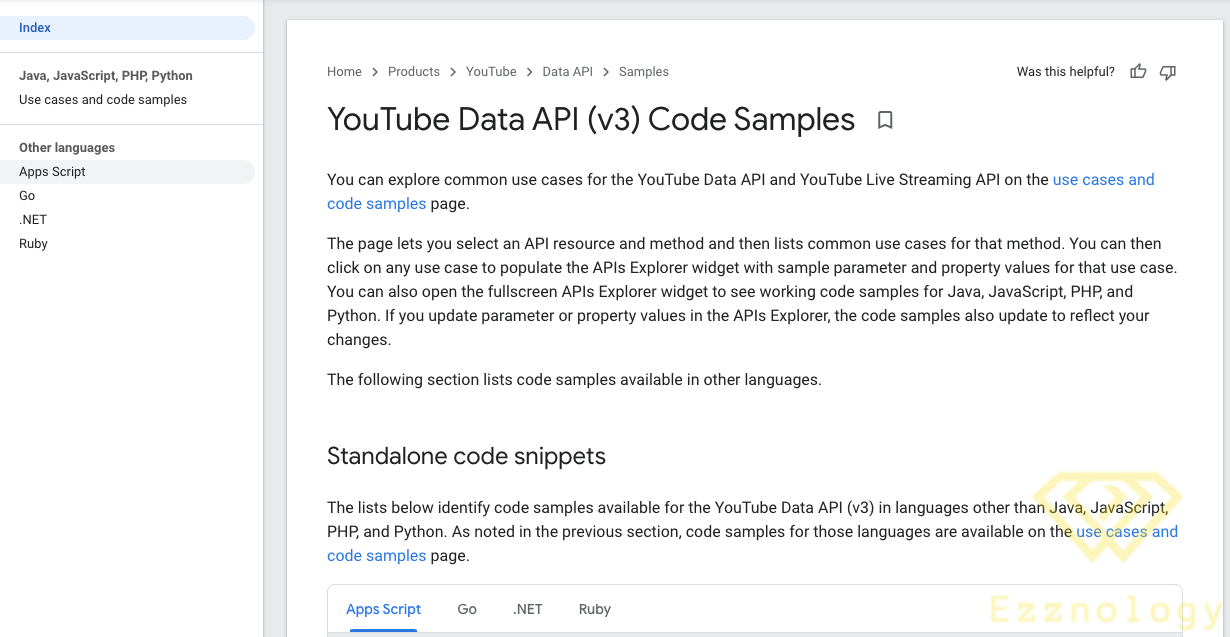
What are some other ways you can use the YouTube API on your website or application? Below you will find useful code samples for common YouTube API use cases.
And with that, dear friend, we have successfully completed our mission 
With greetings from the #Ezznology team
Find what you need at our #store
To subscribe to our newsletter on Google News click here👇👇
Or scan the code

Read also:
Bad Bots and the Commoditization of Online Fraud
Campaigns on Social Media Platforms Calling for Unlimited Internet in Egypt