How to Find Your IP Address on iPhone and Android Devices:
First of all, what does IP mean?
The IP, or (Internet protocol), is your personal address for connecting to the internet and accessing websites, services, or pages
that you want to reach.
All smart devices — including phones — that are connected to the internet have their own (IP) address, which as we mentioned is never duplicated
across any other internet-connected device in the world that has a SIM card. Through this address, the device can be tracked, monitored, or
controlled. It can also be blocked from accessing the internet or certain websites. This applies to any internet-connected device,
whether it is a smart device, an iPhone, or an Android phone. At the same time, while accessing your own IP number is extremely
easy, many people do not know how to find this number or address on their phone.
Whether your phone is an iPhone or Android, you can access your local or internal IP address,
also known as your (Private IP). However, if you
need to find your public IP address, you may need to use certain websites that can help you,
or other tools — especially if you are not a network specialist or familiar with such matters.
How to Find Your IP Address on Android Phones:
The method we are about to describe works with all Android versions — it was specifically tested as shown in the attached screenshots on Android 11.
You can find your IP address on an Android phone by following
these steps:
- Open your phone's Settings, then select Internet & Networks, followed by Wi-Fi.
- Tap on the name of the Wi-Fi network you are currently connected to and choose to view the advanced settings for that connection.
- In this window (Advanced Settings) you will find all IP addresses assigned to your phone on that network, along with other useful details such as the MAC Address (the physical address of your phone).
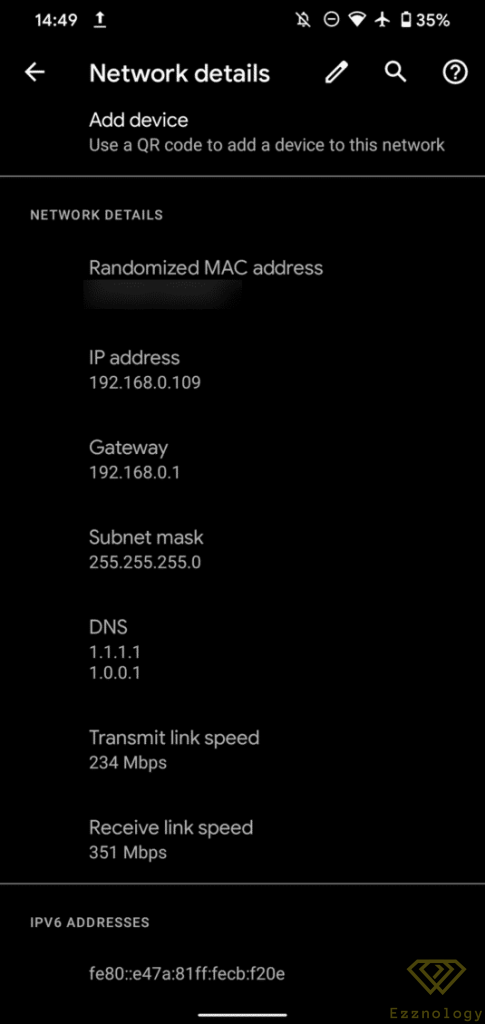
- Finding the connection address
Second: How to Find the Local IP Address on iPhone:
Through steps not very different from those we applied previously, we can easily reach the IP address on iPhone devices. You can also
manage this address through the internet connection settings:
Follow these steps to do so and find the IP address on an iPhone:
- Open your device's Settings and then select Wi-Fi.
- Next, tap the "i" icon next to the name of the network you are currently connected to.
- Inside this menu you will find your device's IP address, which you can also manage directly from the same menu.
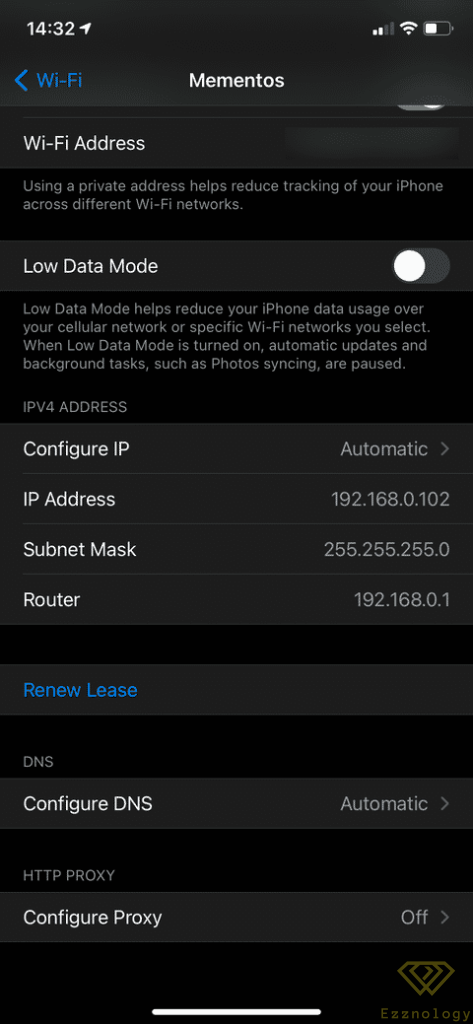
Through this menu you can manage your IP address — whether refreshing it or entering it manually if you want to use a specific number
to access it later or use it for other purposes.
How to Find Your Public IP Address (Public IP) on iPhone and Android Phones:
We just learned how to access the local (private IP) address.
Now it's time to learn how to access your
public IP address (Public IP). Since you cannot access this address directly from your phone,
as mentioned earlier, you will need a tool or
website to help read your address and display it to you.
Your public IP number is linked to the country from which you are accessing the internet.
Based on this fact, you now understand how a specific website can be blocked
in a particular country, preventing access to it.
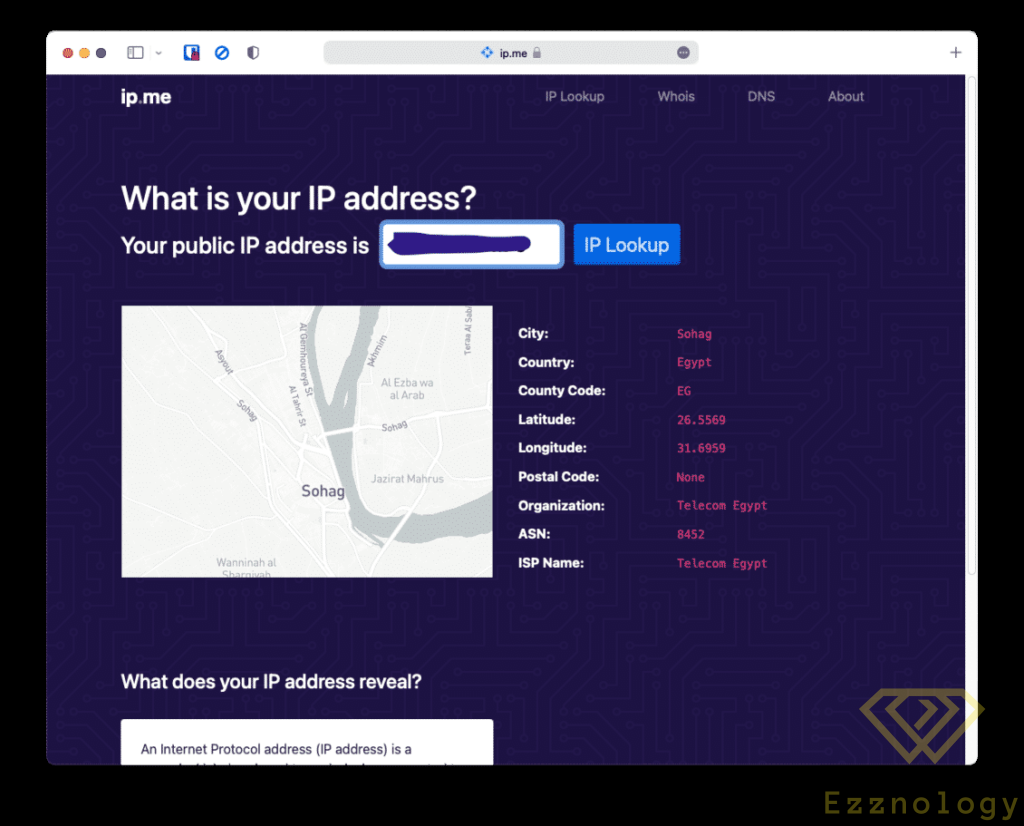
You can easily find your device's public IP by visiting one of these websites:
- IP.ME
- WhatIsMyIP
- What Is My IP Address
Each website will also provide you with additional information about your service provider, your location, your connection number, and other details.
How to Find Your IP Address on iPhone and Android Devices:
Read also about:
- What is the Neuralink chip that Elon Musk plans to implant in human brains in 2022
- The 11 best apps in Windows 11 for 2022
- Exynos 2200 — a new processor from Samsung
- Smart home devices at CES 22
- Detecting computer viruses without specialized software